
7, The Suttons N 50°55’52.55″, E 0°48’13.97″ http://maps.google.com/maps?q=loc:50.93126%2C00.80388
Fleetwood Garland 165/5 Caravan Damper
So had a problem with my 1993 Garland since I bought it 2 years ago, when braking the caravan seems to over run and and there’s a clunk and a thud. The same goes for when pulling away from stationary. I narrowed it down to a knackered damper. I tried to push the hitch in to test it but it wasn’t budging at all.
I took the A-Frame cover off but couldn’t find any reference to the damper part number which is apparently stamped on some caravan chassis. I found two plates one that was on the A-Frame

And one that was on the hitch.

I googled 48.24.571.002 and all I could find was an old ebay ad stating (Ref;275E) BPW Damper 02.3722.08.00.0 for BPW coupling 48.24.571.002 P92535 Genuine BPW Hitch Damper 02.3722.08.00.0 BPW coupling 48.24.571.002 P92535 and then hit a dead end.
However I had identified that the hitch/chassis was made by BPW. I dropped BPW an email and they told me that that I needed part 02.3722.07.00 the cheapest I could find this was £81.16 plus postage which was a little high for my liking so I decided to do some digging. After matching up lengths/operating weights etc I found that part number 87000709 for the Avonride/Knott chassis was a match, I found this for £41.96 plus postage which is half the cost of the BPW one from the same supplier.
Due to the bargain hunter I am I pursured my search on ebay and found item number 201166665608 described as KNOTT AVONRIDE TRAILER DAMPER 750-1300KG 576000 87000709 FITS IFOR WILLIAMS for £39.25 with free postage.
Surely I should have been happy? but wait a minute I don’t buy manufacturer parts for my cars unless I can’t avoid it so why should I for my caravan? after a bit more searching I found item number 201322048394 described as REPLACEMENT TRAILER DAMPER FOR KNOTT 87000709 750-1300kg KFG13 & IFOR WILLIAMS for £27.25 posted!
So for a bit of investigating and perserverance I managed to save £65!. I ordered today and will hopefully be fitting it at the weekend.,
So for reference the BPW damper is
545mm with damper
Body length 330mm
Rated upto 1300kg
There is also a Ifor Williams matching part number which is P00937
I hope this post saves someone some effort/money let me know if it has!
Installing golang under Linux Debian Wheezy
Now I had a headache installing golang as using via apt-get in wheezy installed an old version which wasn’t compatible with the software I wanted to install. Luckily I manged to stumble upon a tool called Go Version Manager (gvm) installed under the root user so modify to meet your needs.
Find IP address of a jenkins slave
Manage Jenkins -> Nodes -> Select a node -> Script Console
in the box paste
println InetAddress.localHost.hostAddress
hit ‘run’ and after a short wait the ip will be returned.
My Location Hearing Dogs The Grange
12, Wycombe Rd N 51°41’04.40″, W 0°49’47.35″ http://maps.google.com/maps?q=loc:51.68456%2C-00.82982
Hearing Dog Update
Just had some awesome news from the people at Hearing Dogs, they have found a potential match for me and would like me to visit them so we can meet and see how we get on. He’s a 19 month old black Labrador.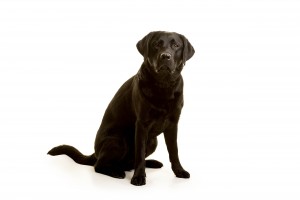
Embeding Monowall Traffic Graphs Into A Webpage
I had a situation where I needed to embed a monowall interface stats into a webpage so thought i’d do a quick how to.
Create a user group
Login as an admin and navigate to System > User manager > Groups
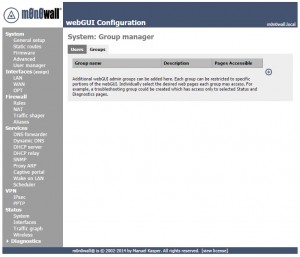
Click the + to add a new group Choose a group name and description ie ‘stats’ Scroll down and select the field marked Status: Traffic graph status_graph.php

Click ‘Save’ Click the ‘Users’ tab Click the + to add a new user
Add new user details and under the ‘Group Name’ select the group you just created ie ‘stats’

Click ‘Save’ Navigate to Status > Traffic graph Choose the interface you want to monitor.
Right click on the graph and select ‘View Source’ Search the page ‘Ctrl+F’ for the word ’embed’
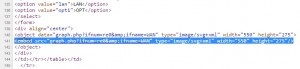
Put the embed tag into a webpage with the user details and ip address of your monowall device along with your usernam and password ie
src=”stats@YOUR-IP/graph.php?ifnum=re0&ifname=WAN”” >http://stats:stats@YOUR-IP/graph.php?ifnum=re0&ifname=WAN” etc etc
If you enter stats:stats@YOUR-IP/graph.php?ifnum=re0&ifname=WAN directly into a browser a full page will open showing your graph.
My Location
IP13 0QN, United Kingdom N 52°9’47.57″, E 1°23’02.42″ http://maps.google.com/maps?q=loc:52.16321%2C01.38401
Grive sync API now defunct
I noticed my files were no longer being sync’d using the grive application. Further investigation revealed the following errors. ./grive Reading local directories Synchronizing folders exception: /usr/bin/grive/libgrive/src/protocol/AuthAgent.cc(174): Throw in function long int gr::AuthAgent::CheckHttpResponse(long int, const string&, const gr::http::Header&) Dynamic exception type: boost::exception_detail::clone_impl
Draytek ARP address mismatch
I’ve previously had an issue with clients not being able to connect and ARP address mismatch showing in the logs.This happens when the source mac address doesn’t match ARP senders mac address. This was resolved by accessing the Draytek via telnet and executing.
ip arp accept 1
Which will return
Accept illegal ARP source mac REPLY packets